
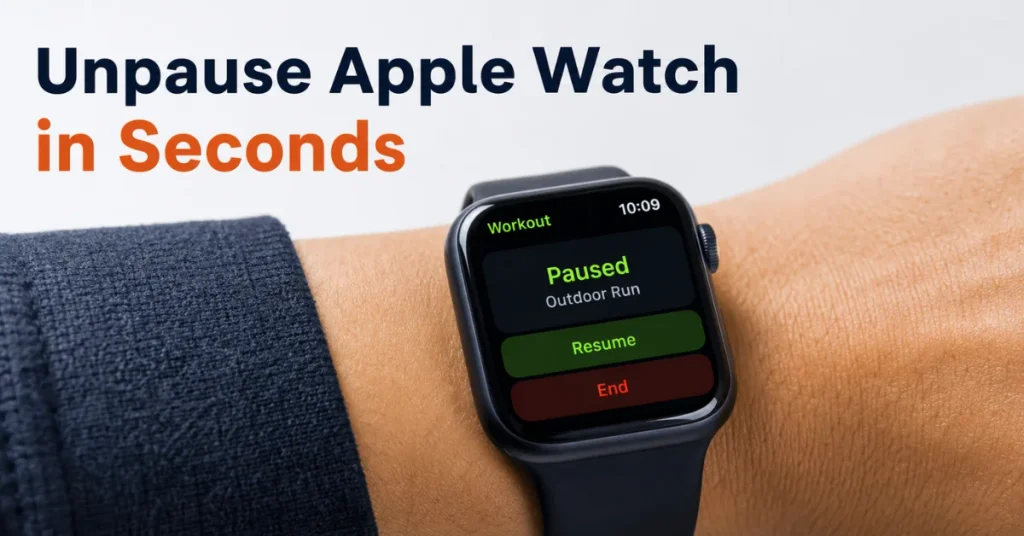
You’re mid-run, you glance down, and the screen says “Paused.” Nobody hit the button on purpose, and now the watch won’t move. If you’ve searched for how to cancel pause on Apple Watch, the good news is that it’s almost always a two-second fix, not a broken device.
This guide covers the exact steps to resume a paused workout, why watchOS pauses things without asking, and what to change so it stops happening mid-set or mid-mile.
How to Cancel Pause on Apple Watch (Two Quick Methods)
There are two reliable ways to get out of a paused workout, and they work the same way whether you’re running, cycling, or doing strength training.
Method 1 — Swipe and tap:
- Wake the watch and look at the paused workout screen.
- Swipe right across the display.
- Tap Resume.
Method 2 — The button shortcut:
- Press the side button and the Digital Crown at the same time.
- This is the same combination you use to pause, so pressing it again simply reverses the action.
Anyone who trains regularly with an Apple Watch knows the button combo becomes muscle memory fast, since it works without needing to look at the screen. On Apple Watch Ultra models, you can also press the Action button together with the side button to pause or resume, which is handy with gloves on.
If you’re on an older Apple Watch running an early watchOS version, you may see a Force Touch option (press firmly on the screen) to bring up Pause and Resume controls. Apple has phased Force Touch out of newer watchOS releases, so on a Series 7 or later, the swipe or button method is what you’ll actually see.
One thing people miss: a paused workout screen sometimes offers a third option below Pause and End — Dismiss. Tapping that clears the pop-up without stopping your session, which is different from resuming, so use Resume if you actually want the clock and heart rate tracking running again.
Quick Reference: Which Method Works on Your Watch
| Apple Watch Model | Watch OS | Swipe + Tap Resume | Side Button + Digital Crown | Force Touch | Double Tap / AssistiveTouch Pinch |
|---|---|---|---|---|---|
| Series 3–6 | Early watchOS | Yes | Yes | Yes (native) | AssistiveTouch pinch only |
| Series 7–8 | watchOS 8–9 | Yes | Yes | Removed | AssistiveTouch pinch only |
| Series 9 / 10, Ultra 2–3 | watchOS 10.1+ | Yes | Yes | Removed | AssistiveTouch pinch; Double Tap not supported mid-workout |
| Ultra (1st gen) | watchOS 9+ | Yes | Yes, or Action + Side button | Removed | AssistiveTouch pinch only |
Double Tap vs AssistiveTouch: Don’t Confuse These Two
A lot of people assume the flashy Double Tap gesture (tap thumb and index finger together) will pause or resume a workout, since it handles almost everything else hands-free. It won’t. Apple’s own feature documentation lists Workout during an active session as one of the specific experiences Double Tap does not cover, alongside things like ECG and Emergency SOS.
The gesture that actually does pause and resume a workout is a different, older accessibility feature called AssistiveTouch Quick Actions, introduced back in watchOS 8. It uses a similar double-pinch motion, which is exactly why the two get mixed up. To turn it on, go to Settings > Accessibility > AssistiveTouch on the watch, or Watch app > Accessibility > AssistiveTouch on iPhone.
Even with AssistiveTouch enabled, some users on Apple’s support community have reported the double-pinch reliably resuming a paused workout but not always registering to pause it in the first place, a quirk that’s shown up across multiple watchOS versions between 2023 and 2026. If that happens, fall back to the swipe or button method above rather than fighting with the gesture mid-workout.
Why Your Apple Watch Keeps Pausing on Its Own
Before you learn how to cancel pause on Apple Watch every single time, it’s worth figuring out why it’s happening in the first place. A few culprits show up again and again:
- Auto-Pause is on. This feature is built for outdoor running and cycling. It pauses the workout automatically when your pace drops near zero and resumes when you start moving again.
- The band is too loose. A loose fit can throw off wrist detection and heart-rate sensing, and the watch reads that as “you’ve stopped.”
- Wrist detection thinks you removed the watch. If it senses the watch has come off your wrist, it will pause or even end the session.
- Accidental presses. The side button and Digital Crown sit close together, so a tight glove or an awkward arm swing can trigger a manual pause without you noticing.
- A stuck app or outdated watchOS. Rare, but it happens after a rough update.
People who train outdoors in cold weather run into the “too loose” issue more than most, since gloves and thicker sleeves make it easy to strap the watch on without enough contact against the skin.
How to Turn Off Auto-Pause for Good
If Auto-Pause is the reason your sessions keep stalling, you can switch it off from your iPhone or the watch itself.
From the Watch app on iPhone:
- Open the Watch app.
- Tap My Watch, then scroll to Workout.
- Toggle Auto-Pause off.
- While you’re there, consider disabling Press to Pause too, since it’s a second source of accidental pauses.
From the watch directly:
- Open Settings on your Apple Watch.
- Tap Workout.
- Adjust Auto-Pause and reminder settings from the same menu.
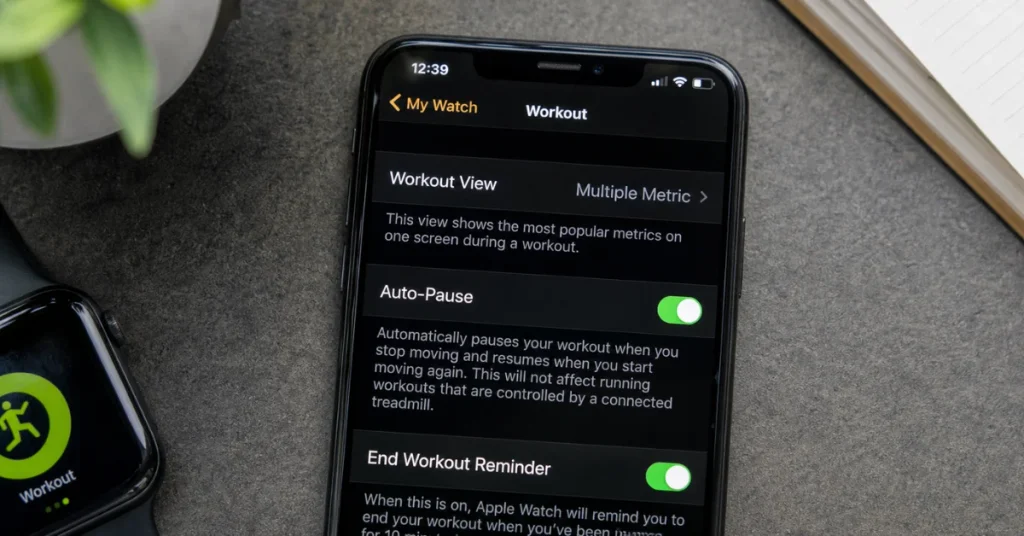
This same Workout settings screen also holds the Start Workout, Resume Workout, and End Workout reminders, which are separate from Auto-Pause. Those reminders just nudge you with a notification; they don’t actually stop your data from recording, so turning them off won’t fix an auto-pausing workout on their own.
Troubleshooting: How to Cancel Pause on Apple Watch When Resume Won’t Work
Occasionally the Resume button is visible but tapping it does nothing, or the screen seems frozen on the paused state. When that happens, professionals who manage fleets of test devices generally work through the same short checklist:
- Force-close the Workout app. Press and hold the side button until the power slider appears, then press the Digital Crown to return to the watch face and reopen Workout.
- Check for a software update. Software glitches around pause and resume tend to get patched quickly, so an outdated watchOS build is a common cause of a stuck screen.
- Restart the watch. Hold the side button, drag the power-off slider, wait a few seconds, then hold the side button again until the Apple logo appears.
- Re-pair as a last resort. If nothing else clears it, unpairing and re-pairing the watch resolves persistent software faults, though it’s worth backing up first.
What the Research Shows
Independent testing and long-running user reports on Apple’s own support community consistently point to the same three triggers behind unwanted workout pauses: loose wrist fit, Auto-Pause combined with stop-and-go activity like interval training, and accidental button presses during high-movement exercises such as boxing or HIIT. Fitness tracker adoption has kept climbing through 2025 and into 2026, and with it, the volume of forum threads about pause-related quirks has grown alongside the feature set rather than shrunk, suggesting this is a settings issue for most people rather than a hardware defect.
Apple Fitness+ Users Get an Extra Layer
If you’re following an Apple Fitness+ class rather than a solo workout, pausing works a bit differently because two devices are involved. You can pause from whichever screen is playing the workout — the Apple TV remote, your iPhone or iPad, or the watch itself — and the pause syncs across devices. To resume, press the side button and Digital Crown together on the watch, or tap the on-screen Play button on the device showing the class.
Content Gap Check: What Beginners and Different Devices Need
New to Apple Watch? The gestures above work the same across the current lineup, including Apple Watch SE, Series models, and Ultra, though Ultra owners get the extra Action-button shortcut.
Using an older Series 3–6 model? Force Touch may still appear as an option since Apple staggered its removal across generations, so don’t be surprised if pressing firmly on the screen also brings up the resume menu.
Non-runners: strength training, yoga, and indoor cycling workouts use the same Pause and Resume controls; Auto-Pause is the one setting that mainly matters for outdoor running and cycling, since it relies on GPS-detected movement.
Conclusion
Once you know how to cancel pause on Apple Watch, it stops being a mystery and becomes a two-second habit: swipe right and tap Resume, or press the side button and Digital Crown together. If it keeps happening without you touching anything, Auto-Pause or a loose band is almost always the reason, and both are fixed in under a minute from the Workout settings menu. Keep watchOS current, keep the band snug, and the pause screen should stop showing up uninvited.
This article is for informational purposes only. For device-specific issues, Apple’s official support channels can provide the most current guidance for your model.
FAQs
Why does my Apple Watch say “Paused” without me pressing anything?
This is almost always Auto-Pause reacting to a drop in your pace or GPS movement, or wrist detection misreading a loose fit as the watch coming off.
What’s the fastest way to resume a workout?
Press the side button and Digital Crown at the same time. It’s the same shortcut used to pause, so it works as a toggle.
Does pausing stop my heart rate and calorie tracking?
Yes. While paused, the watch stops logging active time, pace, and heart-rate-based calorie burn until you resume.
Can I disable Auto-Pause permanently?
Yes, through the Watch app on iPhone under My Watch > Workout > Auto-Pause, or directly on the watch under Settings > Workout.
My Resume button isn’t responding. What now?
Force-close the Workout app, check for a watchOS update, and restart the watch if the screen still won’t budge.